Source Explorer Setup
Prerequisites
-
Target Directories for Persistent Data The Docker Compose installation uses two directories for persistent data. Ensure your user account has full read/write permissions for these directories:
exportdata: Target directory for Elementary, reports, and Solr configuration.
-
Internal Source Schema Access to source data inside the internal database.
If you want Source Explorer to work with the migration, TIN, and NPI report UI screens, your schema's tables must be organized into a V12 object-type structure (i.e.,
account,contact, etc.).
Configure Source Explorer
By default, the Monarch internal landing and staging schemas are already configured for indexing. These sources are named Landed and Merged respectively. NOTE: Links to source explorer within Monarch (e.g. from the reports page) default to these source schemas so modifying or omitting them might cause issues with the links.
To enable Source Explorer for additional schemas, you must update the following monarch_config tables:
Configuration Tables
-
source_explorerDefines the source name and which schema it indexes. -
se_objectSpecifies the objects (tables) to index within a source (schema). Includes settings such as the unique identifier column, display name for the UI, and facet fields used for grouping objects together based on like fields, such as State, and Record Type. -
se_object_fieldLists the fields (columns) for each object that should be indexed and displayed in Source Explorer. See following section for required fields.
Required Fields
For each object in se_object, a row for each of these fields must be defined in se_object_field for Source Explorer to function properly:
- ID – The unique identifier column in the source table.
- Name – The primary display name shown in results and detail views.
- State – Enables filtering by U.S. state.
- Record Type – Enables filtering by record type (e.g., Provider Group, Location).
Optional Fields
These fields are not required but will enhance the record display if configured:
- NPI – National Provider Identifier; shows "N/A" if not configured.
- TIN – Tax Identification Number; shows "N/A" if not configured.
- Street – Street address; shows "N/A" if not configured.
- City – City name; shows "N/A" if not configured.
- Phone – Phone number; shows "N/A" if not configured.
- Source – Indicates the data source; shows "N/A" if not configured.
- Source URL – External or internal link to the record; if configured, becomes a clickable link that opens in a new window.
- Other Fields – You can configure additional fields to appear in the details view. If not configured, they will be excluded from the UI.
Lookup Configuration (se_object_lookup)
This table is used to define relationships (foreign keys) between objects to support hierarchy and related records.The Source Explorer tool can display related records in a hierarchy if foreign key fields are properly configured. To enable this, define the lookups accordingly. Each lookup entry must include:
- Source Name – The name of the configured source (e.g.,
alphacare_raw). - Object Name – The name of the object containing the foreign key.
- Field – The field that stores the reference to another object.
- Target Object – The name of the object being referenced.
- Reference Field – The field on the target object that the reference points to (typically the ID).
Example Configuration
Example Internal DB Table:
raw_alphacare.account
| name_col | uuid_col | state_col | street_col | city_col | tin_col | npi_col | phone_col | source_col | recordtype_col | fk_col |
|---|---|---|---|---|---|---|---|---|---|---|
| Accurate Healthcare | 123e4567-e89b-12d3-a456-426614174000 | CA | 123 Main St | Los Angeles | 123456789 | 1234567890 | 555-1234 | Alphacare | Provider Group | |
| Accurate Healthcare New York Clinic | 987e6543-e21b-12d3-a789-426614174001 | NY | 456 Oak Ave | New York | 987654321 | 0987654321 | 555-5678 | Alphacare | Location | 123e4567-e89b-12d3-a456-426614174000 |
Configuration tables
monarch_config.source_explorer
| source_schema | name | source_label | use_default_lookups | enabled |
|---|---|---|---|---|
| alphacare_raw | raw_alphacare | alphacare | false | true |
monarch_config.se_object
| source_name | object_name | id_col | display_name | facet_fields | enabled |
|---|---|---|---|---|---|
| alphacare_raw | account | uuid_col | Account | {State, "Record Type"} | true |
monarch_config.se_object_field
| source_name | object_name | column | label | enabled |
|---|---|---|---|---|
| alphacare_raw | account | uuid_col | Id | true |
| alphacare_raw | account | state_col | State | true |
| alphacare_raw | account | street_col | Street | true |
| alphacare_raw | account | city_col | City | true |
| alphacare_raw | account | tin_col | TIN | true |
| alphacare_raw | account | npi_col | NPI | true |
| alphacare_raw | account | phone_col | Phone | true |
| alphacare_raw | account | source_col | Source | true |
| alphacare_raw | account | recordtype_col | Record Type | true |
| alphacare_raw | account | fk_col | Parent ID | true |
monarch_config.se_object_lookup
| source_name | object_name | field | target_object | ref_field | enabled |
|---|---|---|---|---|---|
| alphacare_raw | account | fk_col | account | id | true |
Hard Refresh Source Explorer
1. Shut down docker containers
Run: docker compose down
2. Run setup script
Navigate to /src/custom/source-explorer and then run ./setup_solr.sh
3. Start Docker Container with Source Explorer Profile
Run: docker compose up -d
4. Index Source Data into Solr
Navigate to the Monarch API Docs and authenticate. Then run the /indexsource endpoint with source schema you are pulling data from.
Your source data is now indexed in Solr and is accessible by source explorer.
Navigate to /reports/source-explorer in the browser to use the Source Explorer UI
Advanced Features
Source Lineage
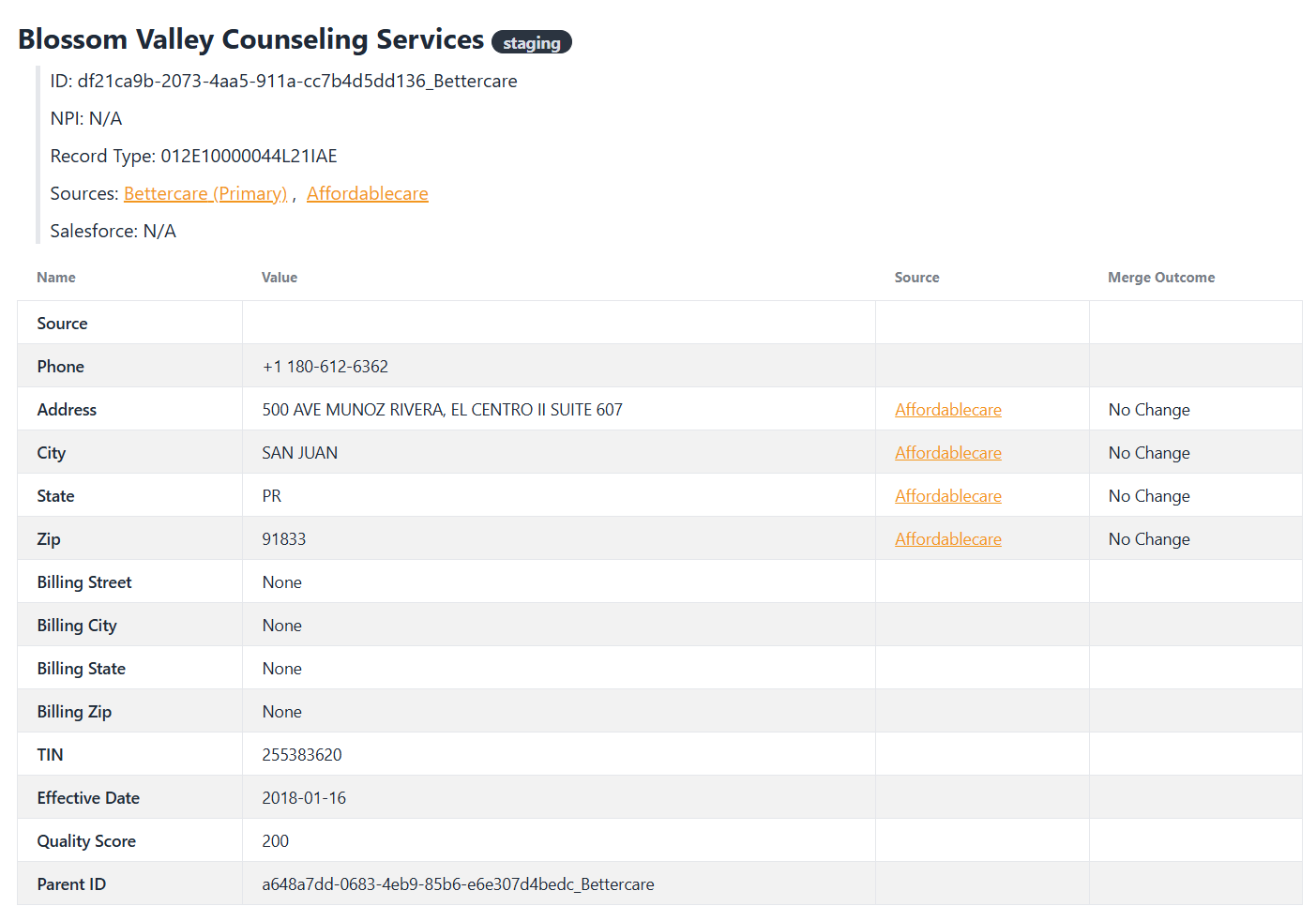 Source explorer can show source lineage when viewing the merged record. By default, the links will take you to the
 Landed record, but you can configure it to link to a different schema. To set this up, ensure that your source in the source_explorer config has the same name as the source_name in the source_ingestion config. Then run DAG provider_merge to link the records together. Once this is set up and the sources have been indexed, navigate to the Merged version of the record and the links will be in place.