How To Data Load
This guide walks through the steps involved in data-loading to Salesforce
Prerequisites
Required
- A Salesforce account with write permissions for the objects being data-loaded
- Salesforce CLI for generating access tokens
- Monarch is set up
- Data is present in the staging schema
Other useful access
- Salesforce UI
- To view the pages for each object
- The setup console - to view the Object Manger, bulk jobs, and more
Relevant schemas
staging- Contains "clean" data - e.g. merged records, corrected hierarchies, etc.
staging_to_upload- Contains subset of staging data to be loaded in this batch - i.e. all the records of all objects pertaining to specified account trees
utilities- Contains the
staging_to_loadtable. This table will need to be populated with the top level id's (accounts with no parent) of hierarchy trees to load in a given batch
- Contains the
Steps to Run
- Update the airflow variables - namely
internal_id_profile_name,salesforce_access_token,salesforce_bulk_query_max_records,salesforce_url, anduse_content_note. See config-file for more details on the variables and this guide for how to generate an access token. - Ensure the data you expect to load is present in the
stagingschema - Ensure any necessary rules/validations in Salesforce are disabled
- Add the top level account id's to
utilities.staging_to_load - Double check that the
salesforce_urlvariable is set to the correct environment - Ensure the config file is set up properly. See data-load-config for details
- Note: Although the data-load of
noteobjects happens in a special task group,noteneeds to be enabled in the config so that relevant records get smart-copied to thestaging_to_loadschema
- Note: Although the data-load of
- Run DAG 06_upload_data_to_salesforce
- Note: If the
noteobject is enabled, thecreate_internal_id_fieldwill fail because Salesforce doesn't let us add fields to that object. You can mark the corresponding mapped task as successful to proceed with the pipeline
- Note: If the
- Mark the
notetask group as successful. This task group shows up because it's enabled in the config but we can skip it because the notes upload is handled inupload_notes(See step 10) - Run extra ACR steps - See Extra ACR Steps section below
- Ensure all notes are uploaded successfully - See Uploading Notes section below
Extra ACR Steps
There are a few extra steps involved in data-loading account contact relationships. When data-loading, you might encounter this error DUPLICATE_VALUE:This contact already has a relationship with this account.:ContactId --. This is because Salesforce automatically creates an ACR between a contact and the account it has set in its accountId field, meaning it sometimes thinks we're trying to load a duplicate.
To get around this, Monarch will find the ACR's created "today", update their salesforce ID's in the the ID tracking table, then generate a csv containing the salesforce ID and migration ID. You then need to use salesforce data loader to upsert the Account Contact Relationship object with that csv to associate the SF-created ACR with a migration ID. Once that's done the Monarch data loader dag will be able to upsert to that object.
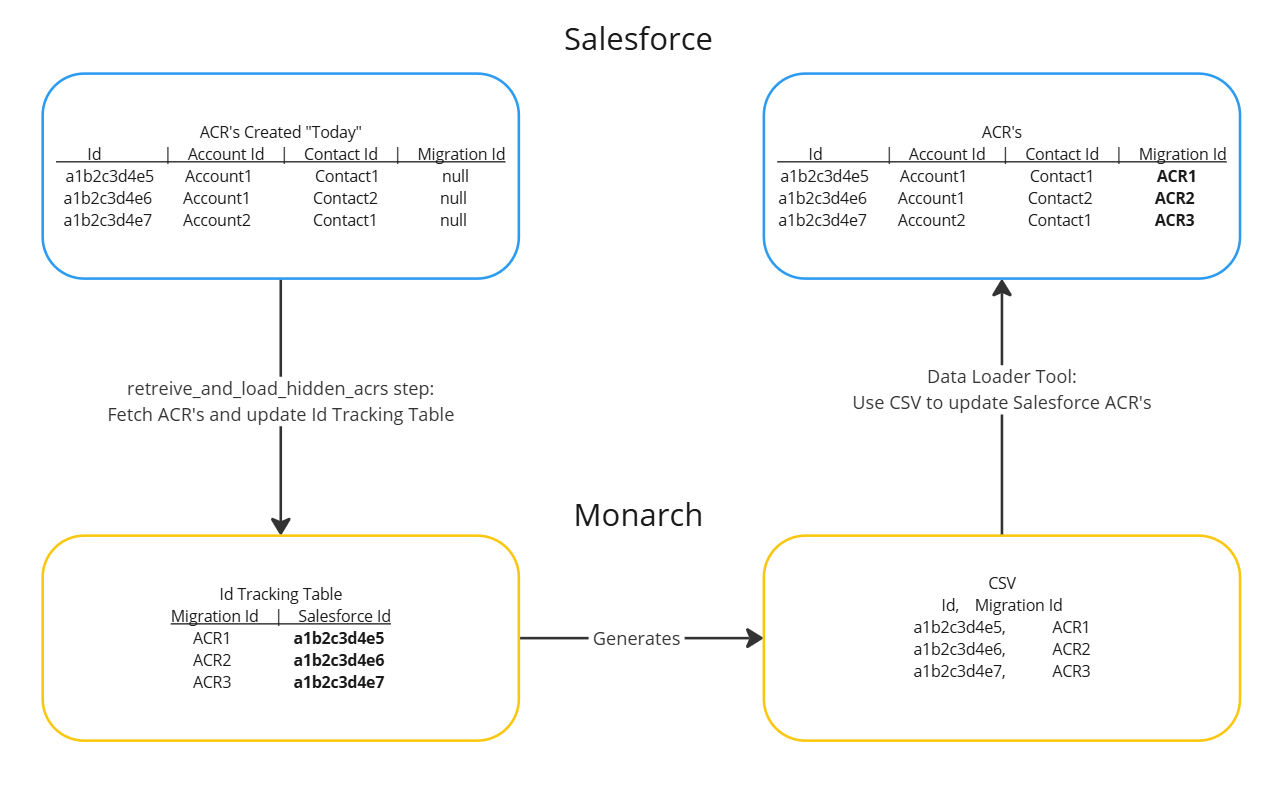
Actual steps:
- Wait for
retrieve_and_load_hidden_acrstask to finish - Go to the
exports/data-load/accountcontact_intdirectory and download the fileaccountcontactrelation_intermediate_<data-load date and time>.csv - Use salesforce's data loader tool to upsert the Account Contact Relationship object with the csv
- Rerun the
accountcontactrelationtask group
Uploading Notes
The notes upload happens in three main steps:
-
note_data_retrieval_update- First, the tool will find existing records (those with their salesforce id populated in the id tracking table) and update those. -
note_data_retrieval_insert- Second, it will find new records (those without their salesforce id populated in the id tracking table) and insert those. -
retrieve_note_links- Third, it will find the content document links (the links between the notes and their parent objects) and save them to the id tracking table.
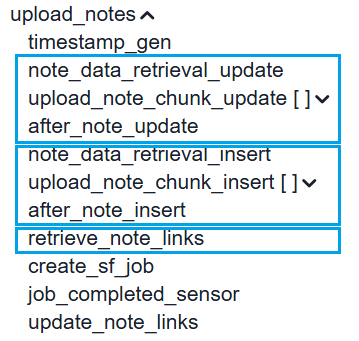
If a specific portion fails, rerun it from one of the three tasks listed above.
Viewing Progress
As the data-load progresses, csv files will be created and added to the exports/data-load/<DAG_RUN_ID> directory where DAG_RUN_ID looks something like this manual__2025-03-10T14:53:14.045518+00:00. It can be helpful to keep this folder open as you run the dag to keep track of progress, successful records, and failed records. In addition, you can view Bulk Data Load Job Details from Salesforce > Setup for more in-depth information.
Tips:
- An object's task group succeeding (green) doesn't necessarily mean the data-load was successful. If a failure file with this format
failed_<object>_<timestamp from xcom>.csvexists for the object, it means there are records that failed to be data-loaded. You can open the file, look at thesf_errorcolumn, and investigate/debug from there.- The exception is
upload_notes. Those results are located in thenotes_upload_results_<timestamp>_<operation>_<batch_num>.csvfile which contains both successful and failed results. The successful ones will havetruefor theSuccesscolumn while the failed ones will havefalse.
- The exception is
- If a task group fails, you can clear it and rerun it. This will create another set of csvs. To find the right csv for a given task group, look at its
timestamp_gentask's XCom to see the timestamp. The csv's corresponding to that run will include that timestamp in the filename.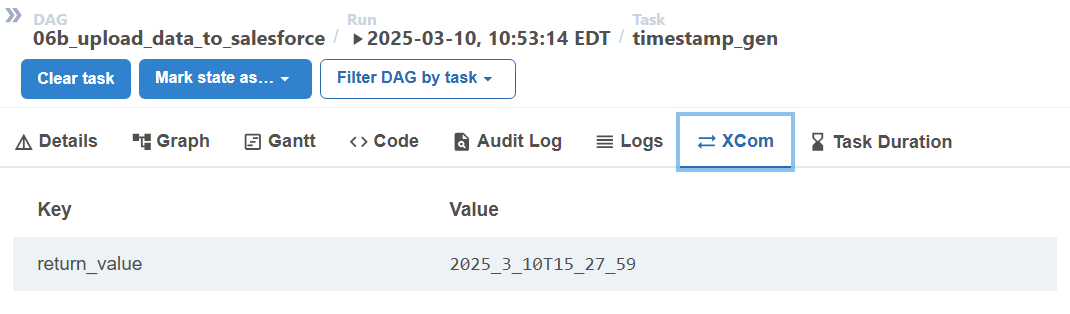
Troubleshooting and Common Issues
Account Contact Relationship Task Group Fails
The first time the accountcontactrelation task group runs, it will likely fail. See Extra ACR Steps section above for details.
Too many SOQL queries
Error message: CANNOT_INSERT_UPDATE_ACTIVATE_ENTITY:v12n.ContentDocumentLinkTrigger: System.LimitException: v12n:Too many SOQL queries: 201:--
Details: This appears primarily during the upload_notes > upload_note_chunk_insert task group and the root cause is still unknown.
Resolution: The workaround is to simply clear out the erroneous records and retry the task group. The erroneous records would be notes in the staging.int__id_tracking table with '' salesforce id:
select
    Iit.Int__Salesforceid as Note_Sfid,
    N.Id,
    N.Parentid,
    N.Title,
    N.Body,
    Parent.Int__Objecttype,
    Parent.Int__Salesforceid,
    Parent.Int__Migrationid
from Staging.Note as N
left join Staging.Int__Id_Tracking as Iit on N.Id = Iit.Int__Migrationid
left join Staging.Int__Id_Tracking as Parent on N.Parentid = Parent.Int__Migrationid
where
    Iit.Int__Salesforceid = ''
    and Parent.Int__Salesforceid is not null
order by N.Id;
Set those to null and rerun the task group starting from the note_data_retrieval_insert task. See Uploading Notes section above for reference.
update Staging.Int__Id_Tracking set Int__Salesforceid = null where Int__Salesforceid = '';
Required Field Missing
Error message: REQUIRED_FIELD_MISSING:Required fields are missing
Details: This error often occurs when an object's foreign key field is missing in the data-load csv. This happens when a parent object's data-load failed. For example, you might see the error on a provider group participation record because its v12n_master_provider_agreement_contract_c field value is missing. It's missing because its parent contract was not successfully data-loaded.
Resolution: The solution is to first fix the parent object and ensure it successfully gets loaded to Salesforce. Once it is, rerun the task group for the object with the REQUIRED_FIELD_MISSING error.
Private Contact
Error message: INVALID_CROSS_REFERENCE_KEY:You can't associate a private contact with an account.:ContactId --
Details: This error occurs on ACR's when the contact's AccountId field is missing.
Resolution: Set an account on the contact record then rerun the ACR task group.
Client Specific Settings
Depending on the client, there could be additional objects or fields to load. Be sure to include those in the config file.
There could also be validation rules, flow triggers, or triggers on each object that cause the data-load to fail. Be sure to have a plan to handle those. We recommend documenting all the settings that need to be changed, disabling them for the data-load, then re-enabling them afterwards. Another approach would be to clean up the source data so that when it gets loaded, no errors are triggered.